
Appearance
Changing Email notifications
An action has email addresses configured within it that determine where email notifications are sent. As you business needs change or as staff move into different roles you may need to change the email address that notifications are sent to. For more information about Email Notifications and how to handle them Monitoring Actions and handling errors
Open the Flow Designer
Navigate to the
ActionsgroupSingle click the Action that you wish to edit. This will display the Action edit window.
Select the
Notificationtab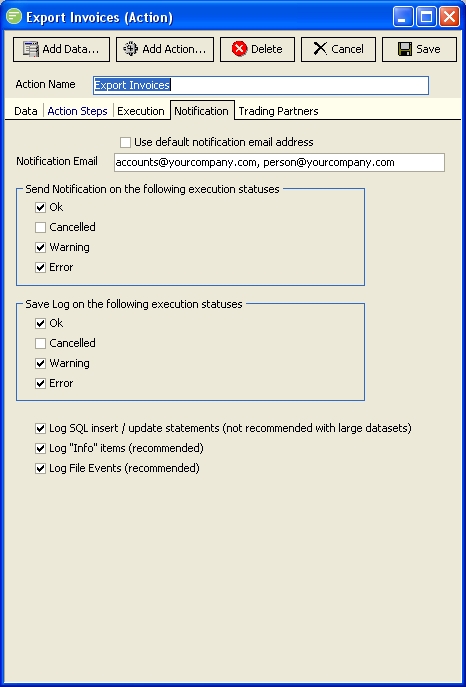
Edit the
Notification Emailfield to the desired email address. You can enter multiple email addresses separated by a comma or semi-colon.If the
Use Default Notification Email Addresscheck box is checked then the notifications will be sent to the default notification address configured within General Setup. Either uncheck this check box or modify the setting in General Setup.
Changing when the email notification is sent
You can modify the Send Notification on the following execution statuses group box to determine when email notifications are sent. You can decide to send them on OK, Cancelled, Warning, or Error statuses. By default notifications are only sent on Warning and Error statuses. It is helpful to select OK and Cancelled statuses when you want to monitor the successful execution of the action. This can be used to receive an email each time the action is run and staff can be trained to begin problem diagnosis if they do not receive the email when it is expected.