
Appearance
Managing Trading Partners
Open the Flow Designer
Navigate to
Trading Communityto display theManage Trading Communitywindow containing a list of trading partners.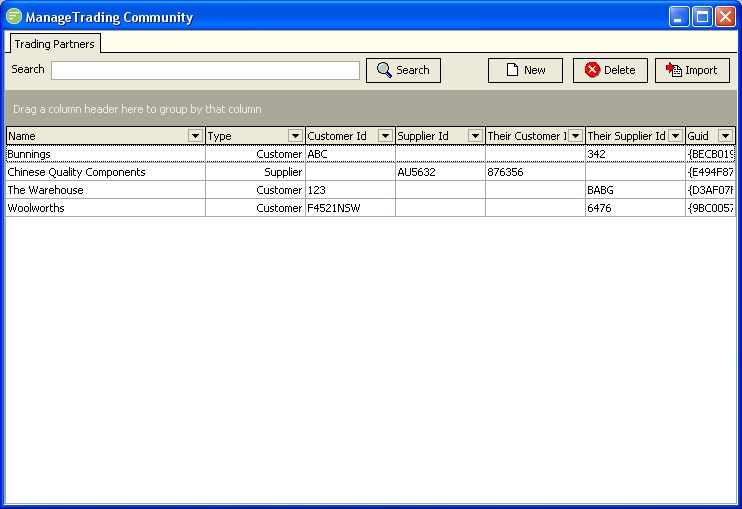
The Manage Trading Community window displays the list of trading partners that are currently configured within Flow along with basic information on each of the trading partners.
Creating a new Trading Partner
Click the
Newbutton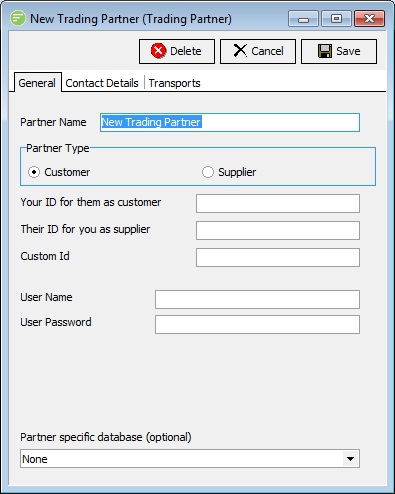
Overwrite the
Partner Namefield with a friendly name for the trading partnerSelect the
Partner Typefield to indicate whether this partner is aCustomerorSupplier.Depending on the selected
Partner Typeenter your unique ID for them, and their unique ID for you. These unique IDs are generally referred to as Account numbers and will be dictated by a particular business system in your company such as your financial system.If the partner is sending data to your Flow system (ie via HTTP or web services) enter a
User NameandUser PasswordClick on the Contact Details tab
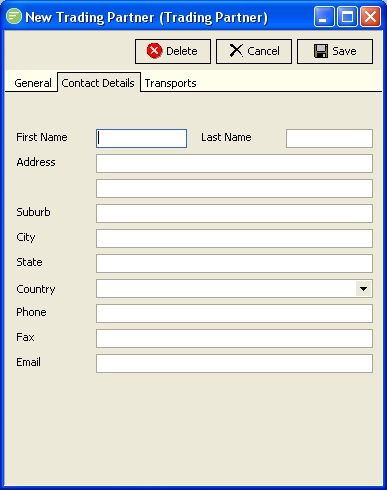
Enter the appropriate optional contact details. These are mainly used for reference purposes and can be referred to in maps.
Click on the Transports tab
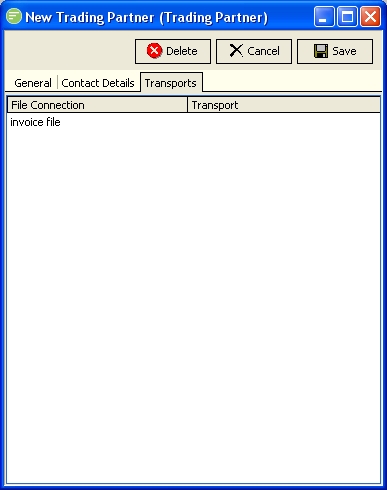
For each File Connection that is appropriate, select the desired Outbound transport. For any action that this trading partner is assigned to that creates a file on the given file connection, it will cause it to be transported via the selected Outbound transport.
Editing an trading partner
- Double click the desired trading partner in the displayed list within the
Manage Trading Partnerswindow - The trading partner details are now displayed. Edit the details as per creating a new trading partner. Click
Saveto save your changes.
Removing an trading partner
WARNING
You should first ensure the trading partner is not assigned to any actions prior to removing it.
Single click the trading partner that you wish to remove. You can select multiple trading partners by using the Control or Shift keys appropriately.
Click the
Deletebutton.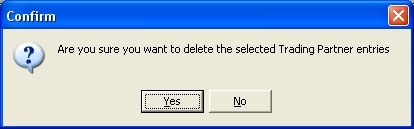
Click
Yesbutton to confirm your choice. This action cannot be undone.
Exporting a trading partner
Right click the trading partner that you wish to export. Select
Exportfrom the context menu that appears.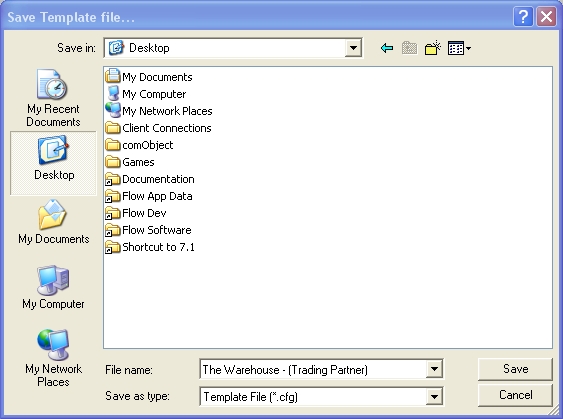
Select the location where you want to save the exported Template and enter a name for the template. A default name will already be entered for you.
Click
Saveto save the exported template to the chosen location
Importing a trading partner
You can also import trading partners using the standard import method of dragging and dropping the Template file onto the background of Flow Designer
Click
Importbutton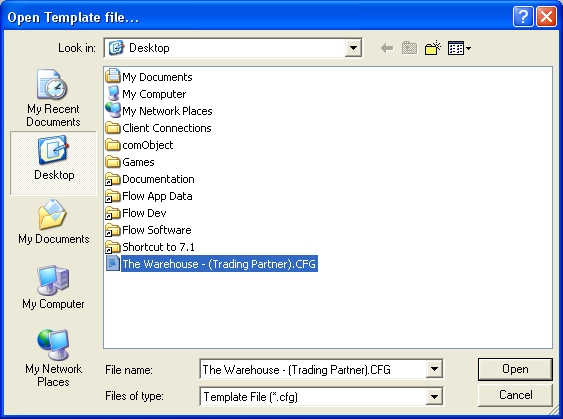
Select the Template file you wish to import and click
OpenA message box will appear to confirm the Template is imported successfully. If no trading partners are found within the template, or if an error occurs you will be notified by the message box.
The imported trading partner will appear in the list within the
Manage Trading Partnerswindow
Searching for a trading partner
- Enter the text you want to search on. The search will occur across the name and unique ID fields.
- Click the
Searchbutton to filter the list based on your search text.