Appearance
Folders
Folders allow you to group your configurations to make them easier to work with.
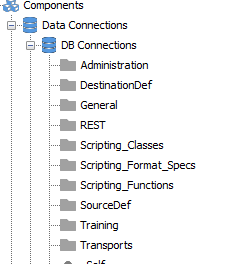
Once a Folder is defined, it will appear in the tree menu of Statelake Designer under each group. You can drag and drop your modules into the Folder as desired.
If you delete a Folder that contains modules, those modules will have their Folder unassigned and therefore display in the root of their tree node.
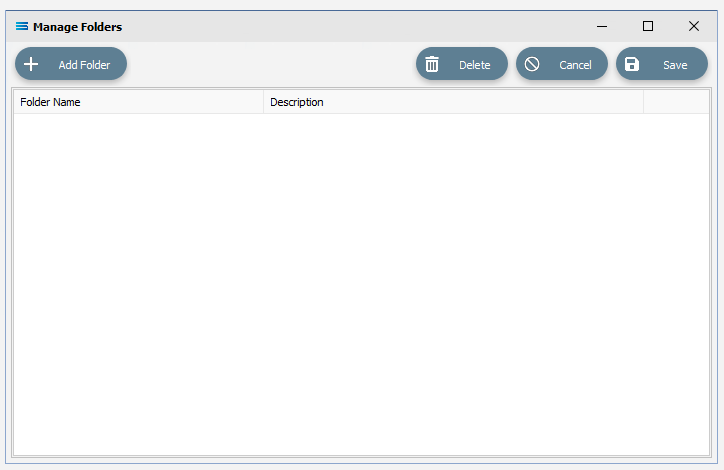
Fields
| Field Name | Description |
|---|---|
| Folder Name | A list of Folders already defined. Single click to display the edit pane in the bottom half of the window. Double click to delete the Folder. |
| Description | Enter a description of the purpose of the folder. This is for reference only. |
Buttons
| Button Name | Description |
|---|---|
| Save | Click to Save any changes you have made. All changes will be lost if you do not click the Save button. Even deleted folders will not stay deleted if you do not click Save. |
| Cancel | Click to Cancel any changes you have made. |
| Delete | Click to Delete any changes you have made. |
| Add Folder | Click to create a new Folder. |
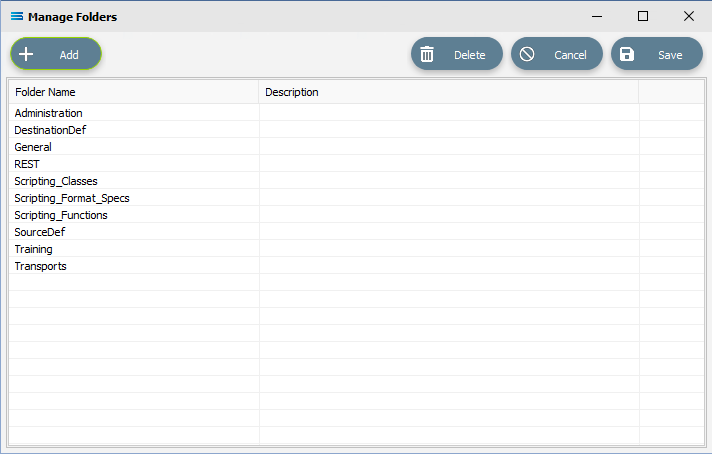
The following example lists in alphabetic order, folders that have been created.
And they appear in the structure tree as illustrated below.