

Appearance
Edit Parameter - Parameters Tab (Map)
To edit a Parameter, highlight the appropriate line in the Parameter list pane.
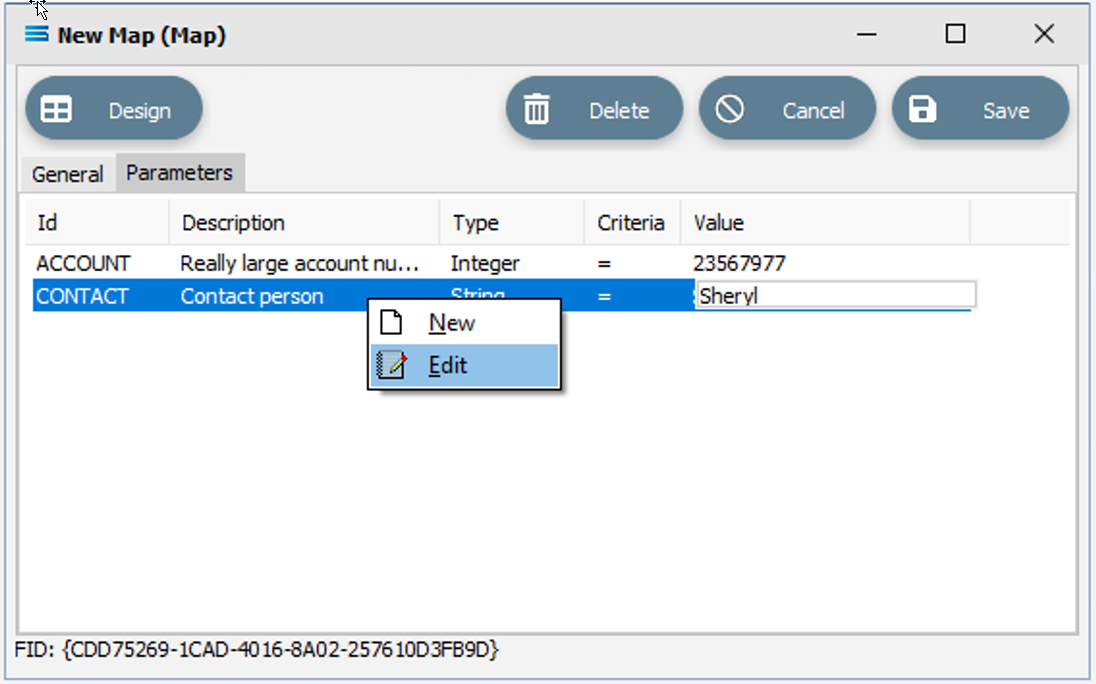
With the Parameter highlighted, right-click anywhere along the line and a pop-up box with New and Edit will appear.
If there are no current parameters on the Map, then you will receive an error.
If there are current parameters on the Map, but none are highlighted and you select Edit, you will receive an error.
Select Edit to bring up and open the selected Parameter in an editing window.
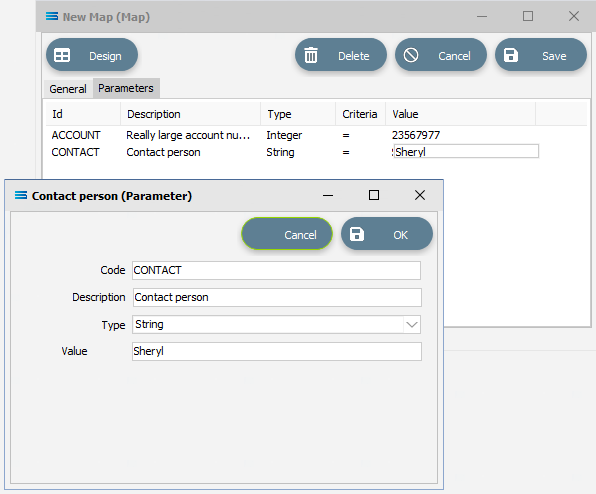
Fields
| Field Name | Description |
|---|---|
| Code | The ID name of the field. Forced to uppercase. |
| Description | Description of the field supplied in the Code field. Tab into this field to erase the prompt, else your description will be amended to the end of the prompt. |
| Type | Field type such as string or integer. Select from the available drop-down list. |
| Value | The value assigned to the field, as specified in the Code. |
Buttons
| Button Name | Description |
|---|---|
| OK | Click OK to Save. |
| Cancel | Click to Cancel the addition. |
You can also Edit a Parameter value directly - but only the value.
When you click on the Parameter and highlight the line, the value field is able to be edited directly from the Parameter list pane.
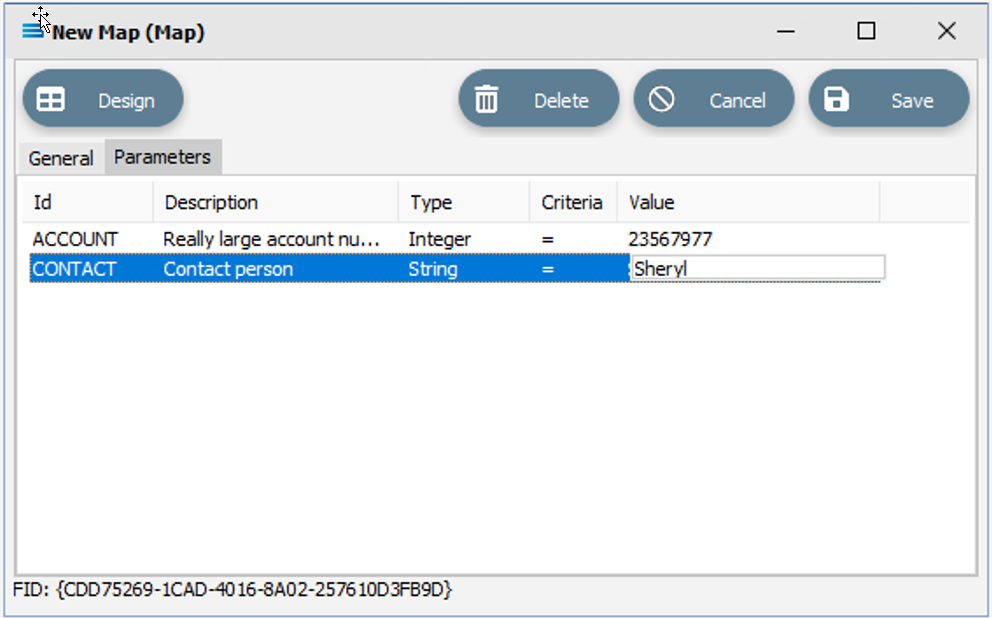
All other fields for that Parameter however, cannot be edited in this direct way,