

Appearance
SSL Settings (Email Settings)
An acronym for Secure Sockets Layer, SSL is an encryption-based internet security protocol, that uses digital certificates to establish an encrypted link between a server and a client to authenticate, encrypt and decrypt data sent over the internet.
SSL is standard technology that allows sensitive information like credit card details to be transmitted securely and privately over the internet - either between a website and a browser, or between two servers. It prevents hackers from seeing or stealing any information transferred, including personal or financial data.
The digital certificate contains a public key that authenticates the identity of one party, and allows for encrypted data transfer through asymmetric, or public-key cryptography. The matching private key is kept secret on the server of the other party.
The SSL Settings editor is used for specifying SSL information for modules that require connection through protocols that support SSL connections, such as Transports. It allows you to enable SSL connection, as well as providing client side certificates for services that support client side certificates.
Once set at Global level, this SSL Setting will apply across the entire configuration.
TLS is an acronym for Transport Layer Security, which is the security protocol that encrypts emails for privacy, preventing any unauthorised access to the email while in transit across the internet between connections.
Selecting SSL Settings opens a fresh expandable SSL Settings Editor window.
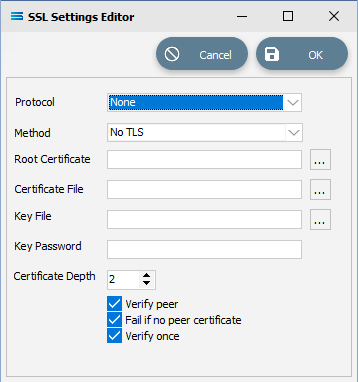
Fields
| Field Name | Description |
|---|---|
| Protocol | Select the correct Protocol from the drop-down list of available options. |
| Method | Select the SSL Method to use. Select None for no SSL. Select Auto to enable SSL. You should nearly always use Auto rather than specify one of the SSL versions directly. Auto will select the best available SSL version to use. |
| Root Certificate | Specify the Root Certificate file that your client certificate is based on. |
| Certificate File | Select the client Certificate File containing your public key. |
| Key File | Select the client Certificate File containing your private Key. |
| Key Password | Enter the password used to encrypt your Key File so the software can access the Key File Certificate. |
| Certificate Depth | Select the Depth of the certificate chain to review when checking server certificate validity. The default is 2. |
| Verify peer | Select to enable the verification of the Peer (server) certificate. If any details of the certificate are not valid, the connection will fail. |
| Fail if no peer certificate | Select to fail if the Peer (server) does not have a certificate. |
| Verify once | Select to verify the certificate once per connection, or each time the connection is used. |
Buttons
| Button Name | Description |
|---|---|
| Cancel | Click to Cancel any edit of the SSL settings used when making the connection to the SMTP server. |
| OK | Click to Save. |