
Appearance
Actions
An Action is the culmination of your configuration. An Action is essentially the definition of a work flow to perform a desired task (or list of tasks). You include within the Action the appropriate modules to perform the desired task. The Action is then assigned a schedule for when it should execute, and you assign trading partners to it that need to be involved in the process.
The Action has reference to all the Data Definitions that are going to be used to perform the task. Each of these data definitions can have their connections reassigned (run time assignment). The Action uses the list of references to manage the connection and opening of the data definitions.
The Action has a reference to the list of steps to be performed as part of the work flow. These steps could involve other modules like Reports and Maps, or could be simple internally defined steps such as Shell Execute commands, custom script, or bespoke SQL statements. It is these steps that defines the tasks the action performs.
An Action is given a schedule for when it should execute. This may be either manually by an operator running the Action when desired, or automatically at scheduled intervals or by monitoring for a file to arrive. An Action could also be published as a web service allowing a third party to trigger the action by consuming the web service. By publishing as a web service it allows Flow actions to participate in a service oriented architecture, and this loose coupling allows for greater flexibility and stability for future changes.
Trading Partners are assigned to Actions that they need to participate in. This could be either by them sending data to be consumed by the Action, or the Action creating data to be sent to the trading partner. An example is an Action that outputs invoices, by assigning different trading partners to the Action you can output the invoices in a manner suitable for each trading partner.
Create a Action
Open the Flow Designer
Navigate to
Configuration > ActionsRight click
Actionsand selectNew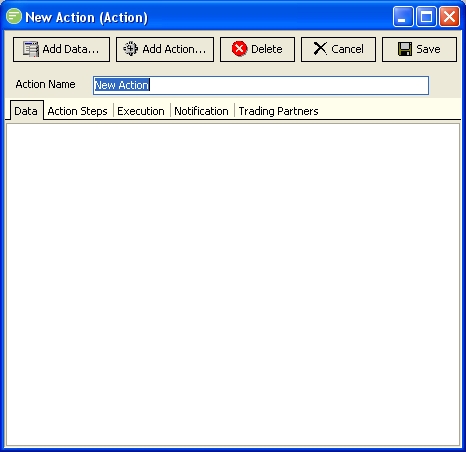
Fill in the details and click
Save. See Action
Edit a Action
TIP
A single left click on the Action will also open the edit window
- Open the Flow Designer
- Navigate to
Configuration > Actions - Right click the desired
Actionand selectEdit - Change the details as required and click
Save. See Action
Delete a Action
Open the Flow Designer
Navigate to
Configuration > ActionsRight click the desired
Actionand selectDelete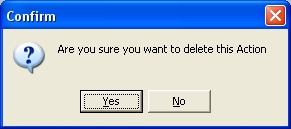
Click
Yesto confirm your choice
Copy a Action
- Open the Flow Designer
- Navigate to
Configuration > Actions - Right click the desired
Actionand selectCopy - The copy of the Action will display in the edit window. Change the details as required and click
Save. See Action
Export a Action
Open the Flow Designer
Navigate to
Configuration > ActionsRight click the desired
Actionand selectExport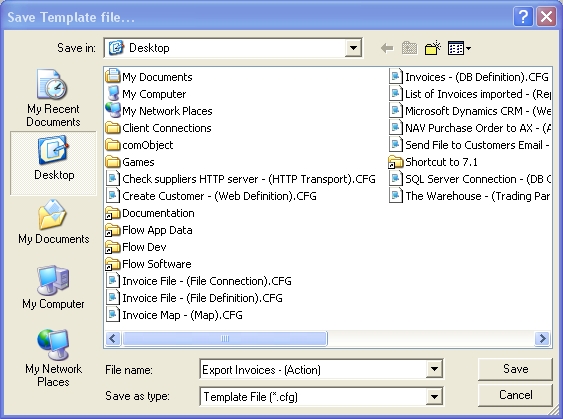
The template file will be assigned a default file name consisting of the name and type of the module. Change the name if desired and click
Save. See Exporting and Importing
Import a Action
Open the Flow Designer
Navigate to
Configuration > ActionsRight click
Actionsand selectImport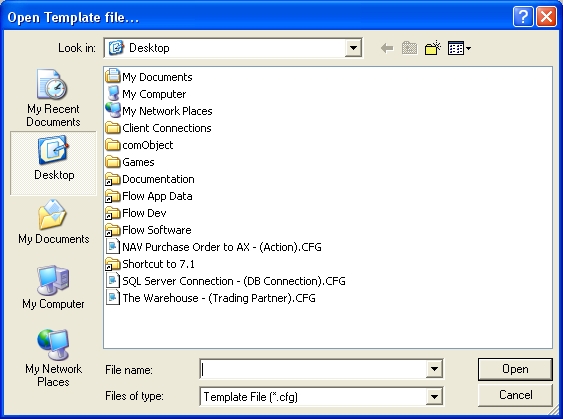
Select the Template file you wish to import and click
Open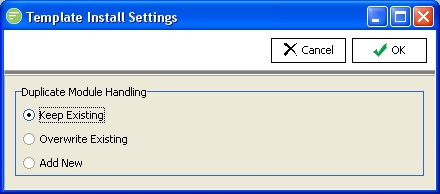
Choose the import method and click
OK. See Exporting and Importing A confirmation screen will show what has been imported.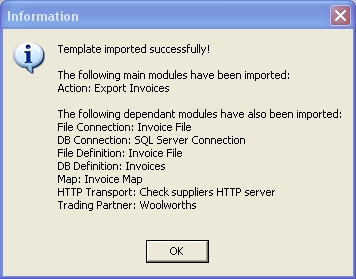
TIP
Note how dependant modules like the Connections , Definitions, Transports, Reports, Maps, and trading partners have been imported. When exporting a module that is dependant on other modules, these dependant modules are also included in the Template so that it can be recreated exactly when imported
Change Security on Action
- Open the Flow Designer
- Navigate to
Configuration > Actions - Right click the desired
Actionand selectSecurity - Change the details as required and click
Save. See Managing Security
Refresh list of Actions
- Open the Flow Designer
- Navigate to
Configuration > Actions - Right click
Actionsand selectRefresh