
Appearance
SAP (Outbound)
A SAP Transport is used to connect to a SAP DI-Server service over the Internet or local network. You can send Files to the remote SAP service. You configure the SAP Transport with the appropriate details for connecting to the remote service and sending any files.
The SAP Transport sends XML files to the DI-Server. The structure of the XML files is defined by XSD schema that you can extract from the DI-Server. The Object Name field and Get Object Schema buttons are used for this purpose. Select the object you require a schema for and click the Get Object Schema button.
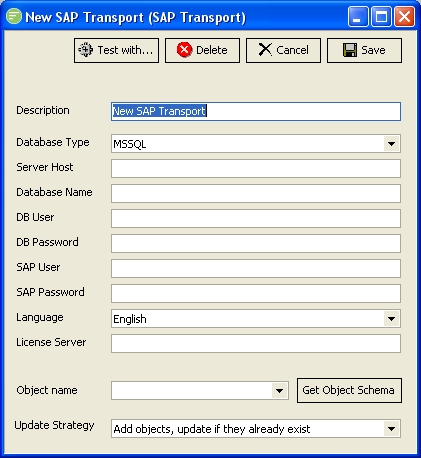
Fields
| Field Name | Description |
|---|---|
| Description | A friendly name for the SAP Transport |
| Database Type | The type of database used by your instance of SAP |
| Server Host | The name of the computer hosting the SAP database |
| Database Name | The name of the database on the Server Host |
| DB User | A user name to connect to the database server hosting the SAP database. |
| DB Password | A password for the above user |
| SAP User | A user name to login to SAP. This is different to the DB User. |
| SAP Password | A password for the above user |
| Language | Select the language of the data you are sending. This must match a language configured in your SAP system. |
| License Server | The computer name or IP address of the SAP License Server. |
| Object Name | Select an object that you require a XSD schema for. Click the Get Object Schema button to generate the schema. |
| Update Strategy | Select the method to use for processing the data sent to the SAP server. |
Buttons
| Button Name | Description |
|---|---|
| Save | Click to save any changes you have made. All changes will be lost if you do not click the Save button |
| Cancel | Click to cancel any changes you have made |
| Delete | Click to delete this module. You will be asked to confirm your choice |
| Test With... | Click to test the connection to the remote SAP DI-Server. You need to select the File connection that will be used to find a file for sending. This will cause the transport to run and send the first file that exists in the File Connection that match the File Search Pattern. |
| Get Object Schema | Click this button to generate the XSD schema for the object selected in Object Name field. You will be asked for the location to save the XSD schema to. |