
Appearance
Inbound Transports
Inbound Transports provide a connection to a location that you can retrieve files from. Transports are typically used in "business to business" transactions where data files have to be transferred from one business to the other, although other Transport scenarios are supported.
You configure the Inbound Transport with the appropriate details for connecting to the source location and retrieving any files that match your requirements. The Inbound Transport will always activate with a particular File Connection and it is the properties of this File Connection that determine the filter for matching files.
Inbound Transports are assigned to Actions. You can then provide the schedule upon which the Inbound Transport checks the remote service for new files. Commonly an Action using an Inbound Transport will be set to "Monitor for incoming files", and the Inbound Transport will be scheduled to run every few minutes/hours. The File Connection that has been set on the Action for monitoring is the one used to filter the matching files on the Inbound Transports remote service.
Many of the Transport types are based around industry-standard protocols. The protocols vary in the security and reliability that they offer: some allow encryption of data; some provide more rigorous proof-of-delivery features.
Basic file transfers can be achieved by sending data files as attachments to email messages. Files can be retrieved from an email account using a POP or IMAP Transport. Access to the messages is controlled by the server and the protocols, and the data can be encrypted during retrieval. However, there is almost no control over what messages are received into the email account (e.g. spam) and inwards messages are not encrypted. These messages can also have attachments that are not data files as such, e.g. corporate logos and signature blocks. If inwards controls such as spam filters are in place, then there is a risk that valid messages will be filtered out and will not be available to Flow. Lastly, inbound messages to an email account cannot be directed easily into sub-folders which means that additional accounts may be required when further processes are added into the Flow configuration.
FTP ("File Transfer Protocol") offers more control over the transfer of files. If an FTP account has been set up with a password, and if encryption is used, then file transfers are protected from initial posting through to retrieval onto your Flow server. The server would not be open to unsolicited files. An FTP server can have multiple accounts, and files can be placed into sub-directories if required.
If the FTP server is hosted away from your Flow server, then an FTP Transport can be used to retrieve files. If you are hosting the FTP server and files are being uploaded to your server, and if Flow has access to the sub-directories on your FTP server, then a LAN Transport can be used to transfer the files across to Flow.
The other Flow Transport types are not used as often, but they allow your configuration to fetch files from a variety of sources if the need arises.
Create an Inbound Transport
- Open the Flow Designer
- Navigate to
Configuration > Components > Transports > Inbound Transports - Right click
Inbound Transportsand point and hover overNewto expand the context menu. Select the type of Inbound Transport that you would like to create. - Fill in the details and click
Save.
Edit an Inbound Transport
TIP
A single left click on the Inbound Transport will also open the edit window
- Open the Flow Designer
- Navigate to
Configuration > Components > Transports > Inbound Transports - Right click the desired
Inbound Transportand selectEdit - Change the details as required and click
Save.
Delete a DB Connection
Open the Flow Designer
Navigate to
Configuration > Components > Transports > Inbound TransportsRight click the desired
Inbound Transportand selectDelete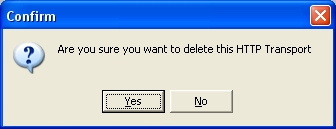
Click
Yesto confirm your choice
Copy a DB Connection
- Open the Flow Designer
- Navigate to
Configuration > Components > Transports > Inbound Transports - Right click the desired
Inbound Transportand selectCopy - The copy of the Inbound Transport will display in the edit window. Change the details as required and click
Save.
Export a DB Connection
Open the Flow Designer
Navigate to
Configuration > Components > Transports > Inbound TransportsRight click the desired
Inbound Transportand selectExport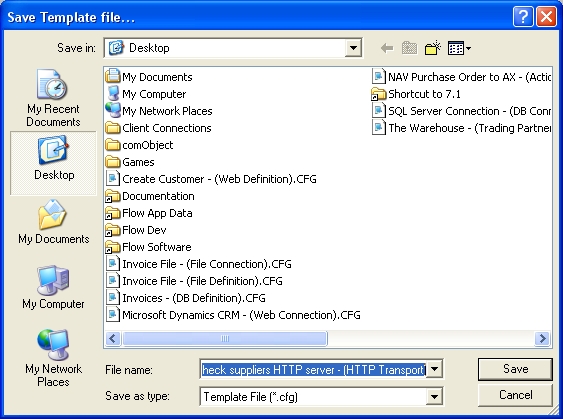
The template file will be assigned a default file name consisting of the name and type of the module. Change the name if desired and click
Save. See Exporting and Importing
Import a DB Connection
Open the Flow Designer
Navigate to
Configuration > Components > Transports > Inbound TransportsRight click
Inbound Transportsand selectImport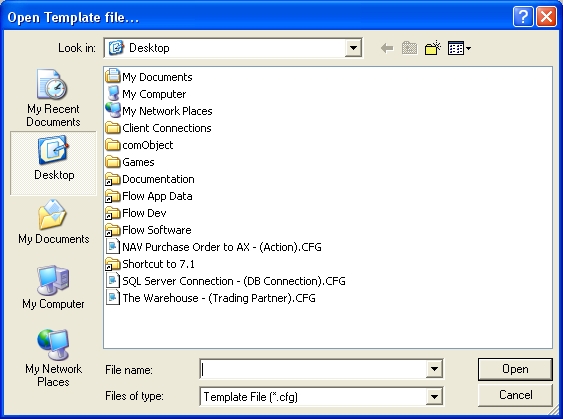
Select the Template file you wish to import and click
Open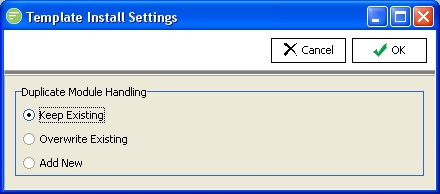
Choose the import method and click
OK. See Exporting and Importing A confirmation screen will show what has been imported.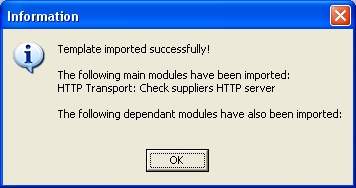
Change Security on DB Connection
- Open the Flow Designer
- Navigate to
Configuration > Components > Transports > Inbound Transports - Right click the desired
Inbound Transportand selectSecurity - Change the details as required and click
Save. See Managing Security
Refresh list of DB Connections
- Open the Flow Designer
- Navigate to
Configuration > Components > Transports > Inbound Transports - Right click
Inbound Transportsand selectRefresh