
Appearance
Services Control Panel
The Services Control Panel is a windows management console. It allows a user to manage Windows NT services that are installed on the computer. This is used to manage FlowService and FlowMonitorService.
The Services Control Panel can be used to enable/disable services, start/stop services, and change configuration properties such as the log on user, and changing error handling and recovery.
Opening the Services Control Panel
TIP
Shortcut: select Start > Run to open the command prompt and enter Services.msc. Click OK
Select
Start > Control Panel > Administrative Tools > Services(these steps may differ depending on the operating system and its configuration)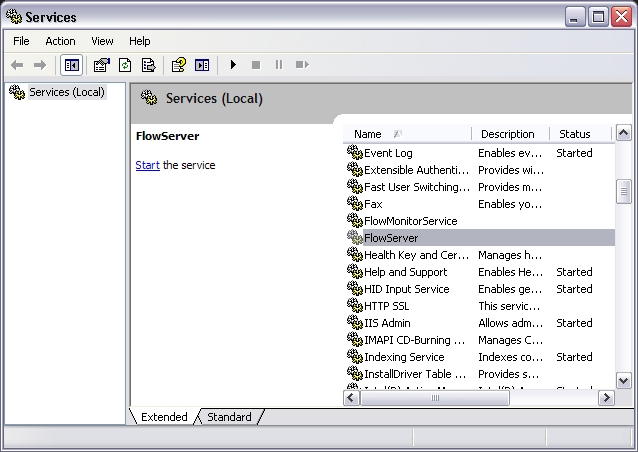
Starting / Stopping Services
- Open the Services Control Panel
- Right click the service you wish to start/stop and select the
startorstopmenu item - When started a service will show
Startedin the status column. When stopped a service will show nothing in the status column
Enabling / Disabling Services
Open the Services Control Panel
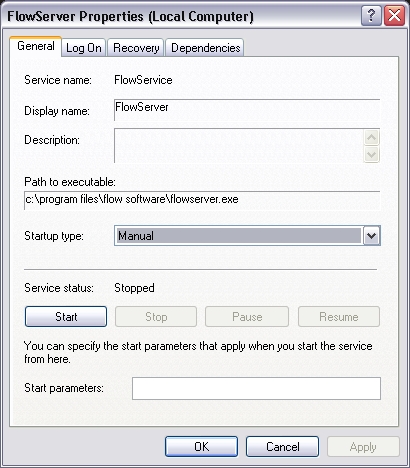
Double click the service you wish to enable/disable. Select the appropriate startup type from the
Startup typedrop-down boxWhat do the Startup Types mean?
Automatic means the service will start when the computer starts. You can also manually start/stop the service but it will start again next time the computer restarts.
Manual means the service will only start if manually activated. This is good for a development computer.
Disabled means the service will not start. An error will occur if you attempt to manually start a disabled service. This is good to ensure the service will never run
 :::
Changing the log on user
Open the Services Control Panel
Double click the service you wish to change the log on user. Select the
Log Ontab. Select eitherLocal System Account(default) orThis accountand enter the user detailsWhat would you want to change the log on user?
The default Local System Account is unable to access network resources, therefore if FlowService is processing actions that are configured to access network folders or printers you need to change to a user that has permission to those network resources.
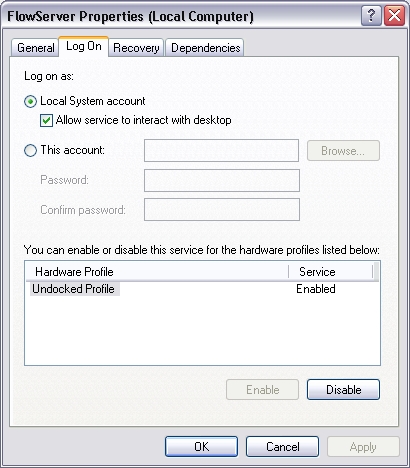
- You may see a message indicating the user you entered has been given privileges to log on as a service. This only occurs if it is the first time this user has been set as the log on user for a service. :::
Changing error handling and recovery
Open the Services Control Panel
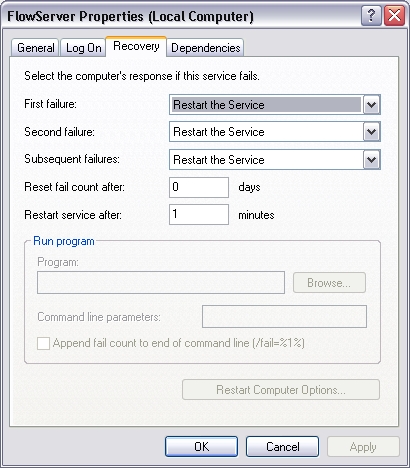
Double click the service you wish to change the recovery settings for. Select the
Recoverytab. Modify theFirst Failure,Second Failure,Subsequent Failuresproperties toRestart the Service. ClickOKWhy do you want to restart the service?
There are many reasons beyond control as to why a service may fail. Flow is capable of starting up where it left off therefore these settings will ensure the service restarts in event of failure for uninterrupted processing
 :::