
Appearance
Backing up a configuration database
You should always backup before performing an upgrade or after configuring large changes. This can also be used as a method for publishing your configuration to another server a) backup the database b) restore on other server.
TIP
Flow has an automatic backup option that will backup your configuration database once per day to a local folder c:\program files\flow software\config\. You should ensure this folder is included in your daily network backup procedures to either tape or a remote location.
Before performing a backup you may want to shrink the configuration database. Refer Shrinking a configuration database
Start Microsoft SQL Management Console (Refer Installing Microsoft SQL Management Console)
Enter the details to login to the SQL server instance hosting your configuration databases. Click
Connect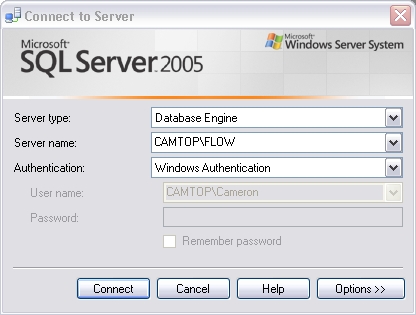
Expand the
Databasesfolder in the left hand tree menuRight click the database you wish to backup and select
Tasks > Back Up.Remove the existing
Destinationpath by clickingRemove. ClickAddto add a new backup destination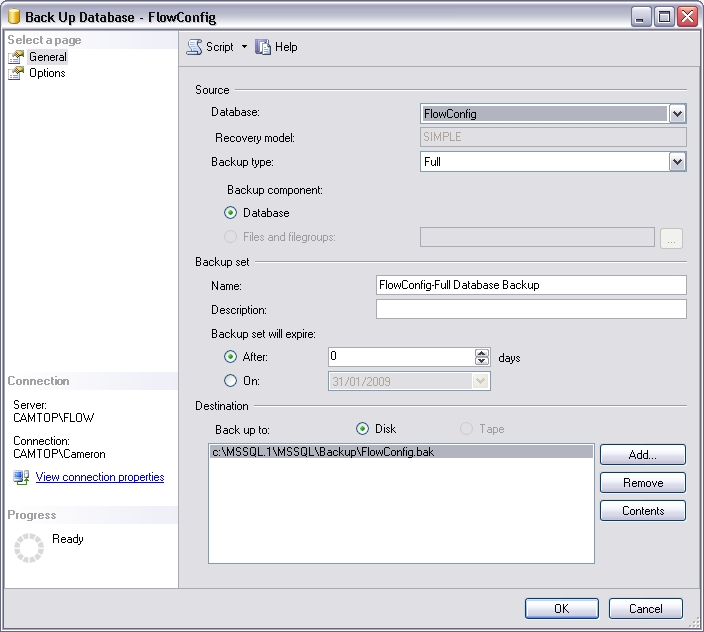
Enter the destination path and file name that you require. Click
OK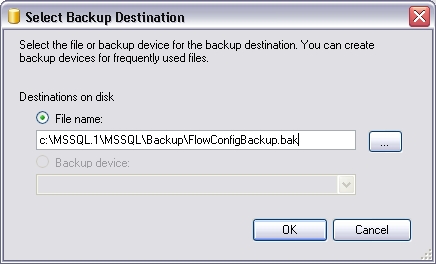
Select
Optionsfrom the left hand menu. SelectOverwrite all existing backup setsoption. ClickOKto begin backup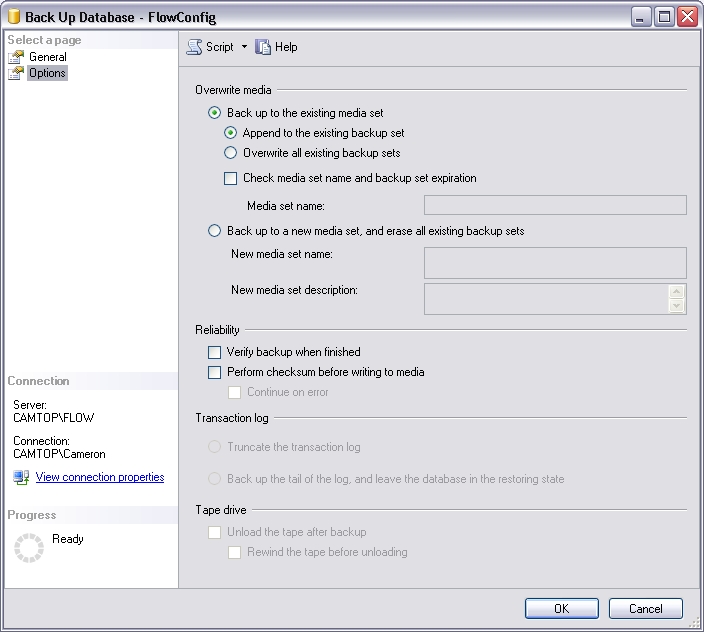
Click
OKto the success message. If errors occur please consult the Flow Knowledge Base or SQL help files.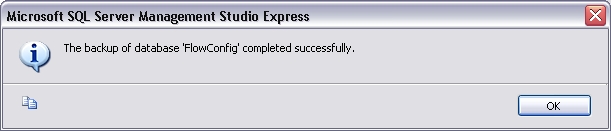
You can now continue to work with the database. If problems arise you can restore the backup at a later date.