
Appearance
Assigning Trading Partners to Actions
You must first assign a trading partner to an action before it is used.
Depending on the type of action the trading partner is assigned to, and the settings of the action, the trading partner will either be used as a lookup reference, or will cause the action to run once for each trading partner assigned to it.
Assigning a Trading Partner to an Action
Open the Flow Designer
Navigate to
ActionsgroupSingle click the Action that you wish to edit. This will display the Action edit window.
Select the
Trading Partnerstab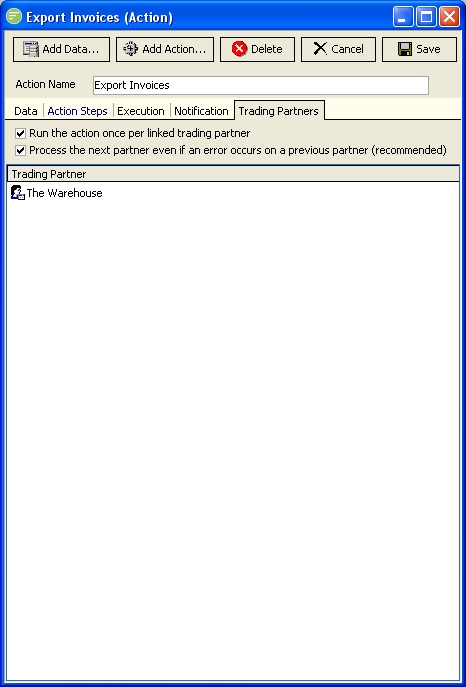
Right click the
Trading Partnerlist box and selectAddfrom the context menu that appears.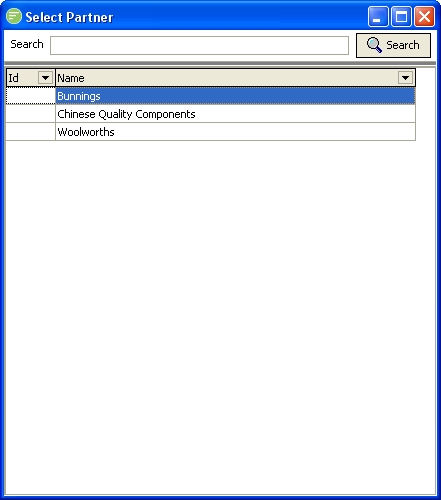
Double click the desired Trading partner from the list of that is displayed. This list will only contain trading partners that are not currently assigned to this action.
The selected trading partner will now display in the
Trading Partnerlist box on the Action editor window.
Running the Action once per assigned Trading Partner
Open the Flow Designer
Navigate to
ActionsgroupSingle click the Action that you wish to edit. This will display the Action edit window.
Select the
Trading PartnerstabCheck the
Run the Action once per linked trading partnercheck box. When enabled the action will execute once for each assigned trading partner each time the action is executed (either manually or via a schedule). You should not normally need to change this item from its current setting as the action would have been configured to operate in a particular way. Normally you will only need to assign or remove trading partners from the action.