
Appearance
Main Screen (File Definition)
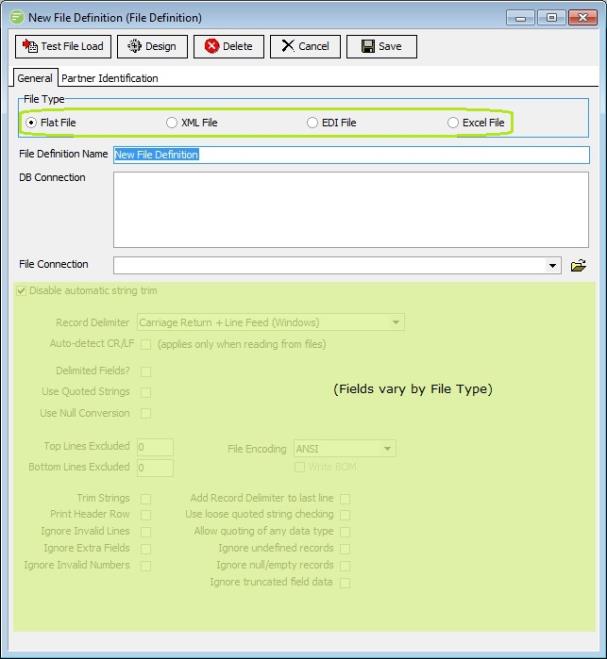
Fields
| Field Name | Description |
|---|---|
| File Type | Select either Flat File, XML File, EDI File (EDIFACT or X12), or Excel File. |
| File Definition Name | A friendly name for the File Definition. |
| DB Connection | Select the DB Connection(s) used on this File Definition. This is a design time setting, and can be overridden with run time setting on the Action. |
| File Connection | Select the File Connection used on this File Definition. This is a design time setting, and can be overridden with run time setting on the Action. |
| Type-specific fields | See General Tab - Flat File; or See General Tab - XML File; or See General Tab - EDI File; or See General Tab - Excel File |
Tabs
| Tab Name | Description |
|---|---|
| General | General options you need to fill in for all File Definitions (although the detail will depend on the File Type of the File Definition). |
| Partner Identification | Deprecated - use partner functions and custom script actions. These options allow you to specify how partners are identified based on values in the File. These settings are optional. |
Buttons
| Button Name | Description |
|---|---|
| Save | Click to save any changes you have made. All changes will be lost if you do not click the Save button. |
| Cancel | Click to cancel any changes you have made |
| Delete | Click to delete this module. You will be asked to confirm your choice. |
| Design | Click this window to open the designer. You should populate the fields of the Main Screen prior to designing the File Definition. |
| Test File Load | Click this button to load a file into the definition. The associated File Connection will be used to find a file to load - ensure a file is sitting in the Main Directory of this File Connection that matches the File Search Pattern. A Log will display to show the results of loading the file. After loading you can close the Log window and open the designer to preview the data itself. |